English
Save up to 95% memory and
reduce tab clutter in Google Chrome
OneTab is available for Chrome, Firefox, Edge, Safari, and more
Before: 1981 MB memory used
After: only 99 MB memory used
95%
memory reduction
No signup or registration required
How it works

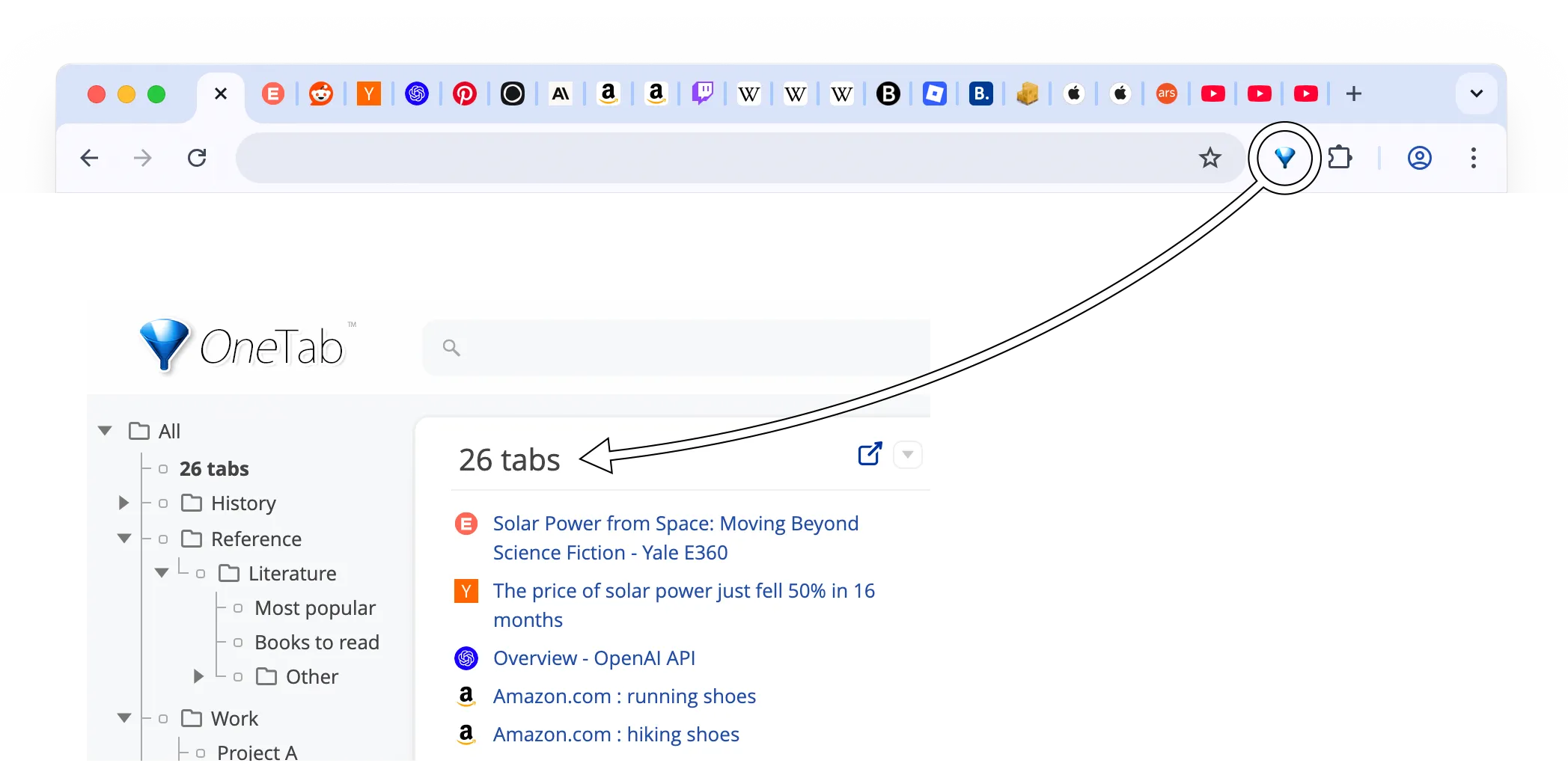
Whenever you have too many tabs, click the OneTab icon to convert them into a list. When you need them again, you can restore them one by one or all at once.

When your tabs are in the OneTab list, you can save up to 95% of memory because fewer tabs are open in Google Chrome.

Privacy assurance

OneTab is designed for privacy. Your tab URLs are never transmitted or disclosed to the OneTab developers or any other party. Icons for tab URL domains are generated by Google. The only exception is if you intentionally use the 'Share as a web page' feature, which uploads your tab list to a web page so you can share it with others. Tabs are never shared unless you specifically use the 'Share as a web page' button.

Additional Benefits

Storing tabs in OneTab can also speed up your computer by reducing your browser's CPU load and memory (RAM) usage. Even a high-end computer can become sluggish when many browser windows are open, because each open window may constantly consume resources.

More Features

OneTab lets you easily export and import your tabs as a list of URLs. You can also create a web page from your tab list to share your tabs with other people, other computers, or your smartphone or tablet.

You will not lose your tab list if you accidentally close the OneTab page, your browser crashes, or you restart your computer.

February 2026 Update: A major new version of OneTab has been released to a small percentage of users. It will be rolled out gradually as we confirm there are no significant bugs. Please DO NOT uninstall and re-install OneTab to force an upgrade, as this will cause your existing OneTab data to be lost. To try it now, trigger the update manually: go to chrome://extensions and ensure "Developer mode" is enabled, then click the "Update" button at the top of that page.

How to install OneTab

To install OneTab in under 5 seconds, click here

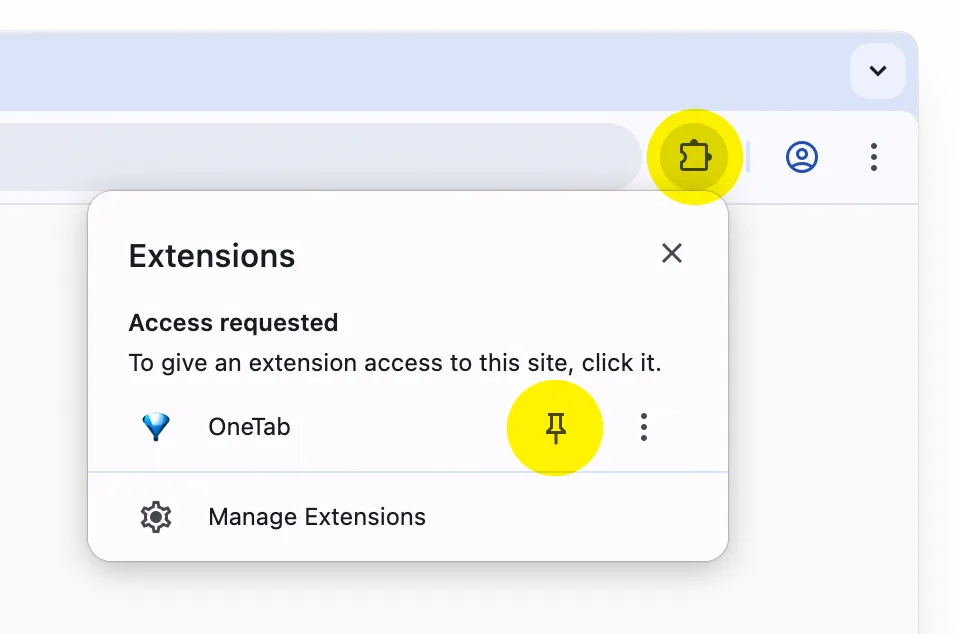
Please note that you need to 'pin' the OneTab icon to your browser toolbar so it is not hidden within the 'Extensions' icon.

How to uninstall OneTab

Simply right-click on the OneTab toolbar icon in Google Chrome, and click 'Remove from Chrome'.

Troubleshooting
If OneTab does not appear to load for any reason, do not try to fix the problem by uninstalling and re-installing OneTab. Uninstalling OneTab will cause your browser to delete your stored tabs. In most cases, you can solve the problem by quitting and restarting your browser. For more troubleshooting information, see our troubleshooting page.
We love to hear from you - contact us here. Visit our help page here.
OneTab is a trademark of OneTab Ltd.